
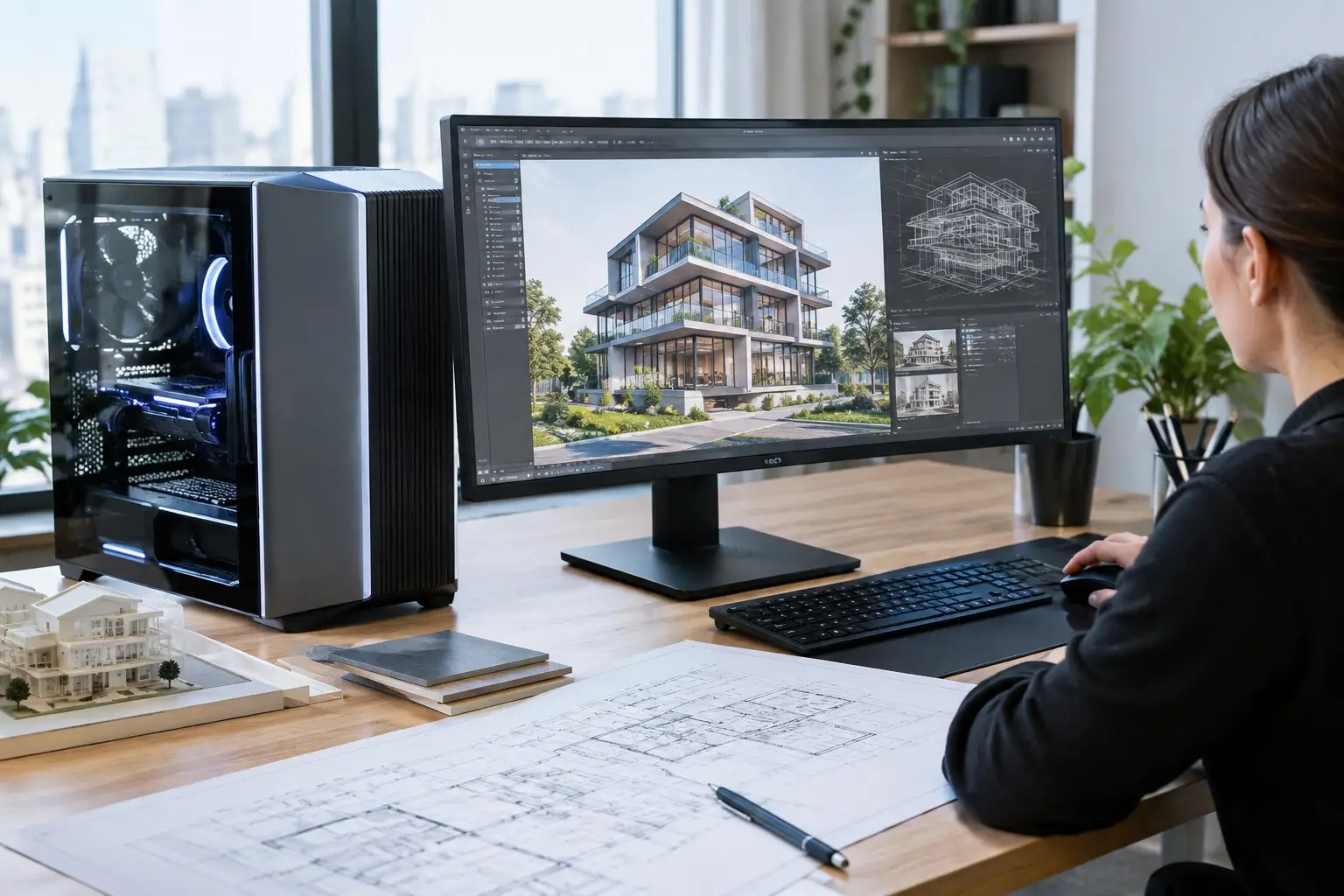

A rendering deadline is a bad time to learn that a computer was built for email, not architecture. The best custom PCs for architects are designed around the actual files, models, render engines, and applications you use each day. That means choosing balanced components that keep drawings responsive, models stable, and render times reasonable without spending money on hardware that will sit idle.
For architects, a custom computer is not about having the most expensive parts. It is about avoiding the frustrating bottlenecks that interrupt billable work: slow viewports, long exports, crashes when several design applications are open, and storage that fills up just when a project needs to move quickly.
What architects need from a custom PC
Architecture software places different demands on a system depending on the task. AutoCAD and Revit generally benefit from strong processor speed, especially while drafting and working in active models. SketchUp, Rhino, Enscape, Lumion, Twinmotion, and other visualization tools often place greater demand on the graphics card. Adobe applications, large PDF sets, browser tabs, Teams meetings, and cloud synchronization add more load in the background.
That is why a computer that looks impressive on a store shelf can still feel slow in an architecture office. A gaming PC may have colorful lights and a high-end graphics card, but too little memory or limited fast storage. A basic business desktop may be dependable for documents but struggle with a detailed 3D model. The right build puts the budget where your workflow needs it.
Start by identifying the heaviest work the computer must handle. A designer focused on 2D plans needs a different machine than someone producing walkthroughs, large site models, and photorealistic renderings. If the computer will be used for both design and rendering, it needs more headroom than a system used mainly for markups and project administration.
The best custom PCs for architects start with balance
A balanced workstation has four priorities: a capable processor, enough memory, the right graphics card, and fast storage. Each affects a different part of the workday, so one outstanding component cannot make up for weaknesses elsewhere.
Choose a processor for active design work
For many architecture applications, processor speed matters more than simply having the highest number of cores. Everyday drafting, modeling, and many Revit operations rely heavily on one or a few fast cores. A current-generation Intel Core i7 or i9, or AMD Ryzen 7 or Ryzen 9 processor, is usually an excellent starting point for a professional workstation.
More cores become especially worthwhile for CPU-based rendering, large exports, simulation work, and running several demanding programs at once. However, there is a trade-off. A top-tier processor can require more cooling and power, which increases the cost of the build. For a small office that primarily works in AutoCAD and Revit, a well-selected mid-to-high range processor may deliver better value than the most expensive option available.
Do not underbuy memory
Memory, also called RAM, is one of the most common reasons an otherwise decent architecture computer slows down. When RAM runs short, Windows starts relying more heavily on storage as temporary memory. The result can be lag, long waits when switching programs, and a system that feels unresponsive even though it has a good processor.
Thirty-two gigabytes is a practical minimum for many professional architecture workflows. Sixty-four gigabytes is often the better choice for larger Revit projects, detailed 3D models, point-cloud data, multiple Adobe programs, and visualization software running alongside design tools. For unusually large models or demanding rendering work, 128GB may be justified.
Adding memory later is possible, but it is smarter to plan for it from the beginning. A custom build can use a motherboard with open memory slots, making future upgrades simpler and more affordable when projects become more demanding.
Match the graphics card to your visualization needs
The graphics card, or GPU, matters most when you work in 3D, use real-time rendering, or need smooth navigation through complex models. For straightforward 2D drafting and light 3D work, a capable midrange NVIDIA graphics card can be enough. For Enscape, Lumion, Twinmotion, VR presentations, and frequent rendering, investing in a stronger GPU usually makes a noticeable difference.
NVIDIA cards are commonly selected for architecture work because many visualization applications are optimized around their technology. The amount of video memory is also important. A card with limited VRAM may perform acceptably with smaller models but struggle as textures, geometry, and display resolution increase. Eight gigabytes of VRAM can work for modest jobs, while 12GB to 16GB or more provides a more comfortable margin for serious visualization.
Professional workstation GPUs can be useful when a firm depends on certified drivers, specialized CAD workflows, or application-specific support. They are not automatically the best value for every architect, though. A carefully chosen consumer-level GPU may deliver excellent results for many design and rendering tasks at a lower cost. The right choice depends on your software, project sizes, and whether stability certifications are required by your firm.
Use fast storage and leave room to work
A fast NVMe solid-state drive should be the primary drive in any modern architecture workstation. It improves startup times, application loading, file access, and the general responsiveness of the system. One terabyte is workable for lighter use, but 2TB is a more practical starting point for many architects because project files, libraries, render assets, and backups consume space quickly.
A second internal drive can separate active projects from archives, or provide space for local backups. That said, a second drive is not a backup plan by itself. Important drawings and client files should also be protected with a separate backup process. Hardware can fail without warning, and recovery is never the place you want to be after a deadline has passed.
A practical workstation configuration
For a professional using AutoCAD, Revit, SketchUp, Rhino, Adobe Creative Cloud, and occasional real-time rendering, a sensible custom PC often includes a current Intel Core i7 or AMD Ryzen 7 processor, 64GB of RAM, a mid-to-upper range NVIDIA GPU with at least 12GB of VRAM, and a 2TB NVMe SSD. This setup gives most architects responsive day-to-day performance while leaving room for larger projects.
For heavy visualization, frequent Lumion or Enscape work, advanced rendering, and large collaborative models, step up to a Core i9 or Ryzen 9 processor, 64GB to 128GB of RAM, a higher-end GPU with 16GB or more of VRAM, and at least 2TB of fast primary storage. Add a second SSD if active projects and render assets need to stay local.
For 2D drafting, permit sets, office administration, and light SketchUp work, a lower-cost build with a Core i5 or Ryzen 5, 32GB of RAM, a modest dedicated GPU, and a 1TB or 2TB NVMe drive can be appropriate. Saving money here is reasonable as long as the computer can be upgraded later. Buying a machine with only 16GB of RAM or an undersized power supply may create an expensive limitation sooner than expected.
Details that prevent expensive headaches
The parts inside the computer matter, but the supporting pieces matter too. A quality power supply protects the system and supports future GPU upgrades. Proper cooling helps maintain performance during long renders rather than allowing the processor to slow itself down from heat. A well-ventilated case makes maintenance easier and keeps component temperatures under control.
Monitor choice also affects the experience. Architects often benefit from a large, color-accurate display or two matching monitors for drawings, schedules, emails, and reference material. If a 4K monitor is part of the plan, make sure the graphics card can comfortably support the resolution and workload. A good workstation paired with a poor display still makes detailed work harder than it needs to be.
Software compatibility should be checked before parts are purchased. Confirm the recommended specifications for the exact versions of Revit, AutoCAD, rendering software, and plug-ins your team uses. This is particularly important when older software, specialized printers, plotters, or legacy project files are involved.
Why custom support matters after the build
A custom PC should arrive tested, configured, and ready to work, not as a box of expensive parts that becomes your next after-hours project. The setup should include current drivers, operating system updates, security protection, application installation, and a plan for moving files from the old computer. If a workstation is replacing an aging machine, the transition needs to protect project folders, email archives, templates, fonts, and software licensing.
For Southern California architects, The IT Professionals can build around the applications you actually use and provide direct help when a workstation, network, monitor, or file transfer needs attention. That personal support can be more valuable than a few dollars saved on a prebuilt system when work is waiting.
The best time to plan your next architecture workstation is before the current one starts holding up a project. A clear picture of your software, file sizes, rendering needs, and budget makes it possible to build a computer that earns its place on your desk every day.