
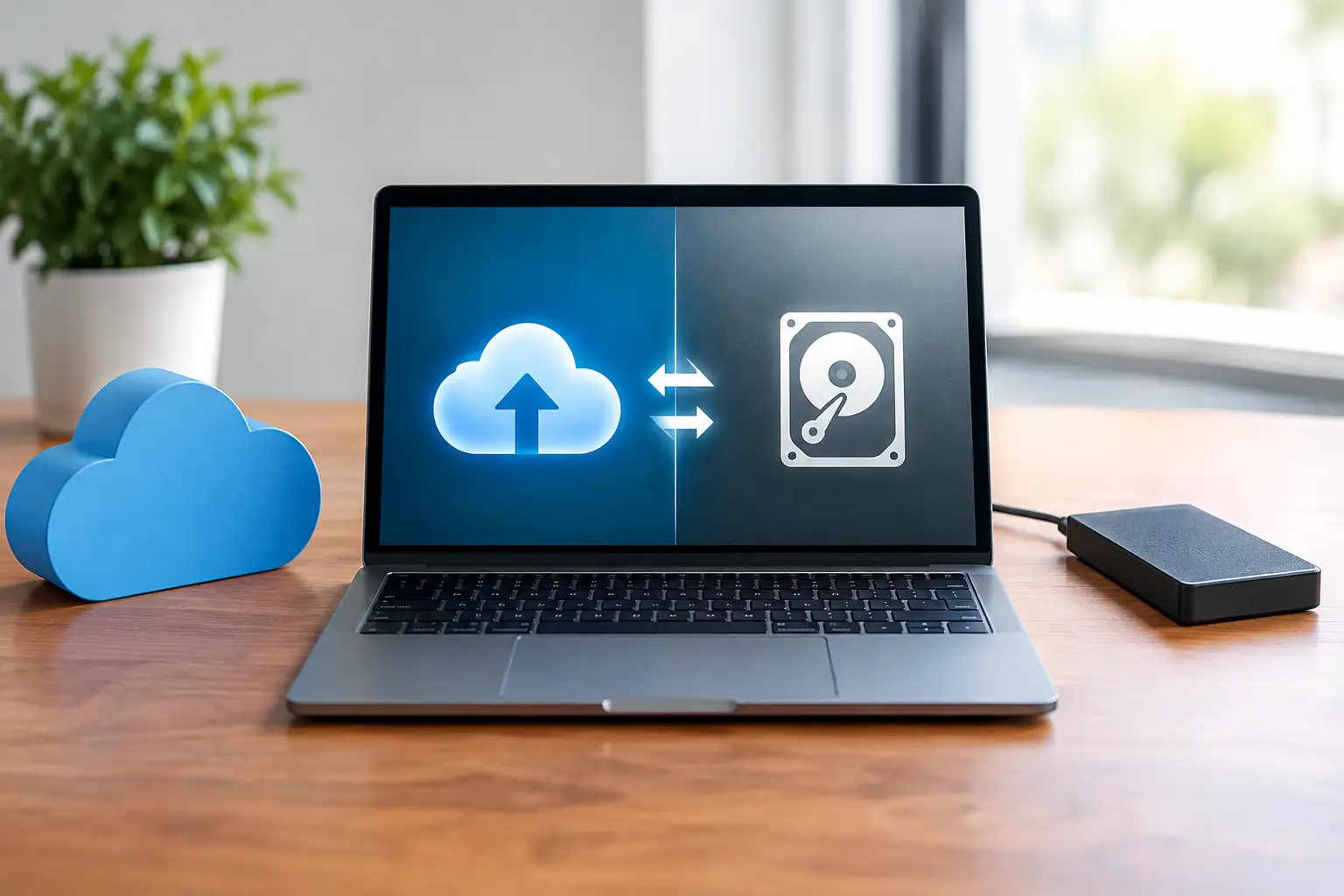

A failed hard drive rarely gives much warning. One minute, family photos, tax records, customer files, or years of work are available. The next, the computer will not start or a folder is suddenly empty. Cloud backup versus local backup is not just a technical choice – it determines how quickly you can get back to normal after a mistake, theft, hardware failure, or ransomware attack.
The right answer is often not cloud or local. For many Southern California homes and small businesses, the safest approach is using both in a way that fits the amount of data, your internet connection, and how quickly you need your files back.
Cloud Backup Versus Local Backup: The Key Difference
A local backup saves a copy of your data to something you control nearby, such as an external hard drive, network-attached storage device, or a separate computer. You can usually connect the device directly and restore files without relying on an internet connection.
A cloud backup sends encrypted copies of your files through the internet to secure off-site data centers. If your computer is damaged, stolen, or inaccessible, you can sign in from another device and restore your information. Because the copy is stored somewhere else, a fire, flood, or break-in at your home or office is less likely to destroy both your computer and your backup.
Both methods can protect files. Their biggest differences are speed, location, ongoing cost, and exposure to local disasters.
When Local Backup Makes Sense
Local backups are often the fastest way to restore a large amount of data. If a desktop computer’s drive fails and you have a recent copy on an external drive, restoring hundreds of gigabytes can take hours rather than days. That is a major advantage for video projects, photo libraries, design files, accounting records, and computer images.
They are also straightforward. An external drive may be a practical choice for someone who wants a simple backup for a single home computer. Small businesses with several computers may benefit from a properly configured network storage device that backs up files automatically.
Local storage does have limits. An external drive sitting next to the computer can be lost in the same burglary, damaged by the same power surge, or destroyed in the same water leak. It can also fail quietly if nobody checks that backups are actually running. A drive put in a desk drawer is better than no backup, but it is not a complete disaster-recovery plan.
Another concern is ransomware. If malicious software encrypts the computer and the connected backup drive at the same time, both copies may be unusable. A good local backup setup should include version history, limited access, and a drive that is disconnected when it is not actively backing up.
Where Cloud Backup Helps Most
Cloud backup earns its value when the problem affects your location, not just one device. A laptop left in a car, a stolen office computer, smoke damage, or a failed network storage device can all take out local copies. With an off-site backup, the data remains available elsewhere.
Cloud systems can also be easier to manage for people who travel, work from home, or need access from more than one location. Files can be backed up automatically in the background, so you do not have to remember to plug in a drive every Friday. That consistency matters more than most people realize. A backup that is easy to ignore is usually ignored right before it is needed.
The trade-off is recovery speed. Uploading the first full backup can take a long time, especially with a large collection of photos or business files. Restoring that data may also be slow if your internet connection is limited. A few documents may download quickly. A multi-terabyte media library may take days.
Cloud backup also comes with a recurring subscription cost. That expense is often reasonable compared with data recovery or business downtime, but it should be understood upfront. Review how much storage is included, whether deleted files are retained, how long versions are kept, and what happens if a payment lapses.
Do Not Confuse Syncing With Backup
This is one of the most common and costly misunderstandings. A file-syncing service is helpful for keeping files available on multiple devices, but syncing alone is not always a true backup.
If you accidentally delete a synced folder, that deletion can spread to every connected computer. If ransomware encrypts a document, the encrypted version may sync as well. Some services offer version history and recycle-bin protection, which can help, but the settings and retention period need to be verified.
A real backup should preserve older versions of files and allow you to restore them after an accidental edit, deletion, virus infection, or hardware failure. The goal is not merely to have your latest files in two places. The goal is to have a usable copy from before the problem occurred.
The Best Protection Uses the 3-2-1 Rule
A practical standard is the 3-2-1 backup rule: keep three copies of important data, on two different types of storage, with one copy stored off-site. Your working computer is one copy. An external drive or network storage device can be the second. An encrypted cloud backup can be the off-site third copy.
This does not need to be complicated. A home user might set automatic cloud backup for documents and photos, then make a local backup to an external drive every week. A small business may back up its shared files locally every night while also sending an encrypted copy to the cloud. The right schedule depends on how much work you can afford to lose.
For example, a business that enters customer orders all day may need frequent backups or continuous file protection. A family computer used mostly for email and photos may be fine with a daily automated backup, provided the photo library is included. The key is to decide based on the value of the data, not on the price of the backup drive.
Security and Privacy Need Attention Too
Backups contain the same sensitive information as your computer: financial documents, passwords, customer records, tax forms, and personal photos. Whether you choose cloud or local storage, protect it accordingly.
For cloud backup, use a strong, unique password and turn on multi-factor authentication. Make sure the provider encrypts data during transfer and while it is stored. Keep recovery codes somewhere safe that is separate from the computer.
For local backup, encryption matters just as much. An unencrypted external drive can expose every file if it is misplaced or stolen. Keep backup devices in a secure location, use surge protection where appropriate, and do not give every user unrestricted access to business backups.
Test Before an Emergency
A backup is only useful if it can be restored. Many people discover too late that their backup was not current, did not include a key folder, or requires a password nobody can find.
Every few months, restore several files to a different folder and open them. Check a document, a photo, and any business-critical file type you use. Confirm that the backup date is recent. If you use a full-system backup, verify that you understand how you would recover the computer after a drive failure.
If your files are already missing or a drive is making unusual noises, avoid repeated restart attempts and do not install recovery software onto the affected drive. Continued use can overwrite recoverable data. The IT Professionals can help assess the situation and, when appropriate, pursue recovery with a no-recovery/no-charge approach.
The best time to set up a backup is when everything is working and there is no pressure. Choose a system you will actually maintain, automate what you can, and make sure your most important files exist somewhere other than the device you use every day.