
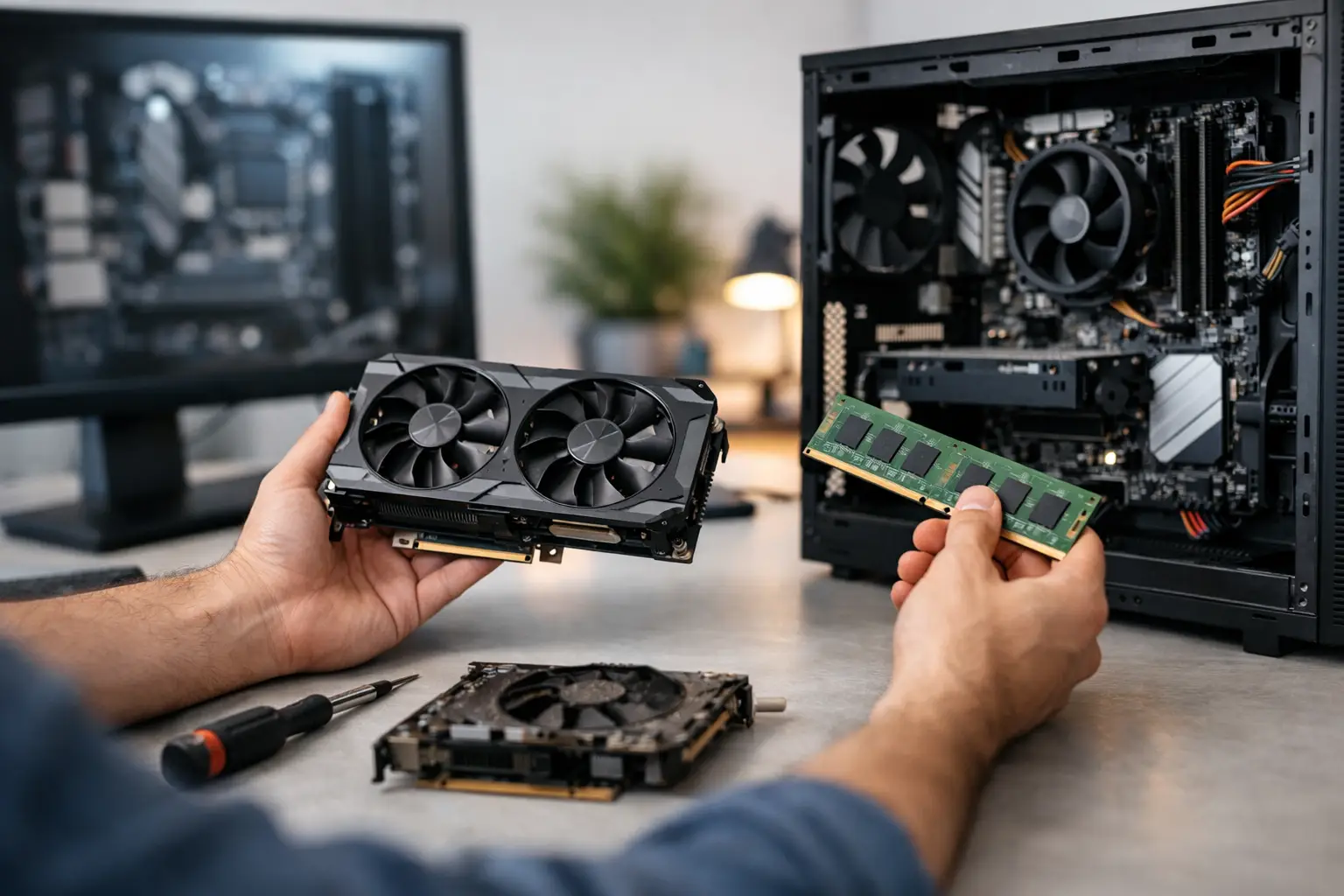

A computer that takes 10 minutes to open email can make an ordinary workday feel impossible. Before you spend money on a replacement, it is fair to ask: are PC upgrades worth it? Often, the answer is yes – but only when the upgrade addresses the real reason your computer is struggling.
A slow PC is not always an old PC. It may be short on memory, using an aging hard drive, carrying too many startup programs, or dealing with malware. On the other hand, a computer with outdated core hardware, repeated failures, or software it cannot run may cost more to keep alive than it is worth. The right choice comes down to what you need the computer to do, its condition, and the cost of a practical repair versus replacement.
When PC Upgrades Are Worth It
An upgrade is usually a smart investment when the computer is fundamentally reliable but cannot keep up with your daily workload. This is common with office PCs, home computers, and business workstations that were perfectly capable a few years ago but now feel sluggish during multitasking, video calls, or large-file work.
The biggest value often comes from improving components that create obvious bottlenecks. Adding memory can help a system that slows down whenever several browser tabs, accounting software, email, and a video meeting are open at once. Replacing a traditional spinning hard drive with a solid-state drive can make startup, file access, and everyday programs feel dramatically faster.
For many Southern California households and small businesses, those two changes can extend a computer’s useful life by several years. They are especially worthwhile when the existing computer has a good screen, dependable power supply, working ports, and software that already fits the way you work.
A graphics card upgrade can also make sense, although it is more specific. It may help with gaming, video editing, 3D design, multiple high-resolution displays, or specialized professional software. It will not, however, fix a computer that is slow because of an old hard drive, too little memory, heat problems, or malware. Putting a powerful graphics card into the wrong system is an expensive way to see little improvement.
The best candidates for an upgrade
A computer is often worth upgrading if it is less than roughly five to seven years old, starts reliably, and supports the current version of the software you need. Desktop PCs are generally easier and more affordable to upgrade because their memory, storage, graphics cards, and power supplies can often be replaced individually.
Laptops can be worth upgrading too, particularly when memory or storage is accessible. But many newer laptops have components permanently attached to the motherboard. If the memory cannot be expanded, the battery is failing, the screen is damaged, and the device is already underpowered, replacement may be the more sensible decision.
Start With the Problem, Not the Part
The most common mistake is buying hardware before identifying the cause of the problem. A PC can feel slow for reasons that have nothing to do with needing an upgrade. Too many applications loading at startup, a nearly full drive, a virus infection, browser extensions, failing storage, and overheating can all reduce performance.
That is why a proper evaluation matters. A technician should check the computer’s hardware health, available storage, memory use, startup load, operating system condition, and security status. This can reveal whether a tune-up will solve the problem, whether a targeted upgrade is needed, or whether there is a more serious issue that could put your files at risk.
For example, a hard drive that makes clicking noises or repeatedly freezes may be failing. Installing a new drive without first protecting important files can create a much bigger problem. If family photos, financial records, client documents, or years of business files are involved, data recovery and backup should come first.
Upgrades That Usually Deliver the Most Value
Not every PC improvement provides the same return. These are the upgrades that tend to make the most noticeable difference for typical home and small-business use:
- Solid-state drive: A solid-state drive, often called an SSD, replaces a slower mechanical hard drive. It can improve startup time, application loading, file searches, and general responsiveness.
- More memory: Memory, or RAM, helps the computer handle several tasks at once. It is particularly helpful for web-based work, video meetings, spreadsheets, photo editing, and modern business applications.
- New battery or charging repair: For a laptop that otherwise performs well, restoring dependable battery life can be much less expensive than buying a new machine.
- Graphics upgrade: This is useful for demanding visual work, not basic web browsing or email. Compatibility with the computer’s power supply and case is essential.
- Operating system cleanup and security service: Removing unwanted software, addressing viruses, updating the system, and optimizing startup settings can restore performance without replacing major hardware.
An SSD and additional memory are often the best combination when a compatible computer feels slow but is otherwise in good shape. Still, compatibility matters. The right drive type, memory speed, available slots, power requirements, and operating system support should be verified before parts are purchased.
When Replacement Makes More Financial Sense
There is a point where putting more money into an aging PC is not a responsible recommendation. If the motherboard, processor, or power system is failing, a repair can become uncertain and expensive. The same is true when a computer cannot run supported operating system versions or essential current software.
Replacement is usually the better route when several problems are happening at once: a cracked laptop screen, weak battery, limited memory that cannot be upgraded, failing storage, and an older processor. Paying for each repair separately can exceed the value of the device while still leaving you with a machine that will soon face another limitation.
Security should also influence the decision. A computer that cannot receive current operating system updates may become increasingly vulnerable to malware and compatibility problems. This matters even more for businesses handling customer information, invoices, financial data, or confidential files.
There are also practical limits to upgrading. An older processor may not keep pace with current video conferencing, design applications, or large spreadsheets, even after adding memory and storage. If your work has changed – perhaps you now edit video, manage a growing business, run multiple monitors, or work remotely all day – a properly configured replacement computer can save time and frustration every week.
How to Compare Upgrade Cost With Replacement Cost
Do not compare only the price of a new computer against the price of one part. Compare the complete result. An upgrade may involve parts, installation, data transfer, system cleanup, backup, and testing. A replacement may require a new PC, data migration, software installation, printer setup, email configuration, security protection, and making sure everything on your network works as it should.
Ask three practical questions. First, will this upgrade solve the issue you actually notice? Second, how many more dependable years is the computer likely to provide afterward? Third, does the total investment stay comfortably below the cost of a replacement that meets your needs?
As a general rule, if a targeted upgrade restores reliable performance for a fraction of a comparable new system, it is often worthwhile. If the repair bill approaches half the price of a dependable replacement and the old machine has other weaknesses, it is time to consider moving on.
Do not overlook the value of setup
A new computer is not automatically ready for work the moment it comes out of the box. Files need to be transferred correctly. Programs, printers, scanners, cloud accounts, passwords, security settings, and network connections need attention. For a small business, lost access to email or accounting files can be more costly than the hardware itself.
That is why the best decision is not always the cheapest hardware choice. It is the choice that gets you back to a reliable, protected, fully working system without risking your data or wasting days on setup problems.
Get an Honest Recommendation Before You Spend
A good technician should be willing to tell you when an upgrade is not worth doing. At The IT Professionals, the goal is to find the practical answer for your computer, budget, and workload – whether that means optimizing what you have, installing the right components, recovering important data, or helping you move to a replacement system.
Bring the decision back to what matters most: a computer that starts when you need it, protects the files you cannot replace, and lets you get through your day without fighting technology.