
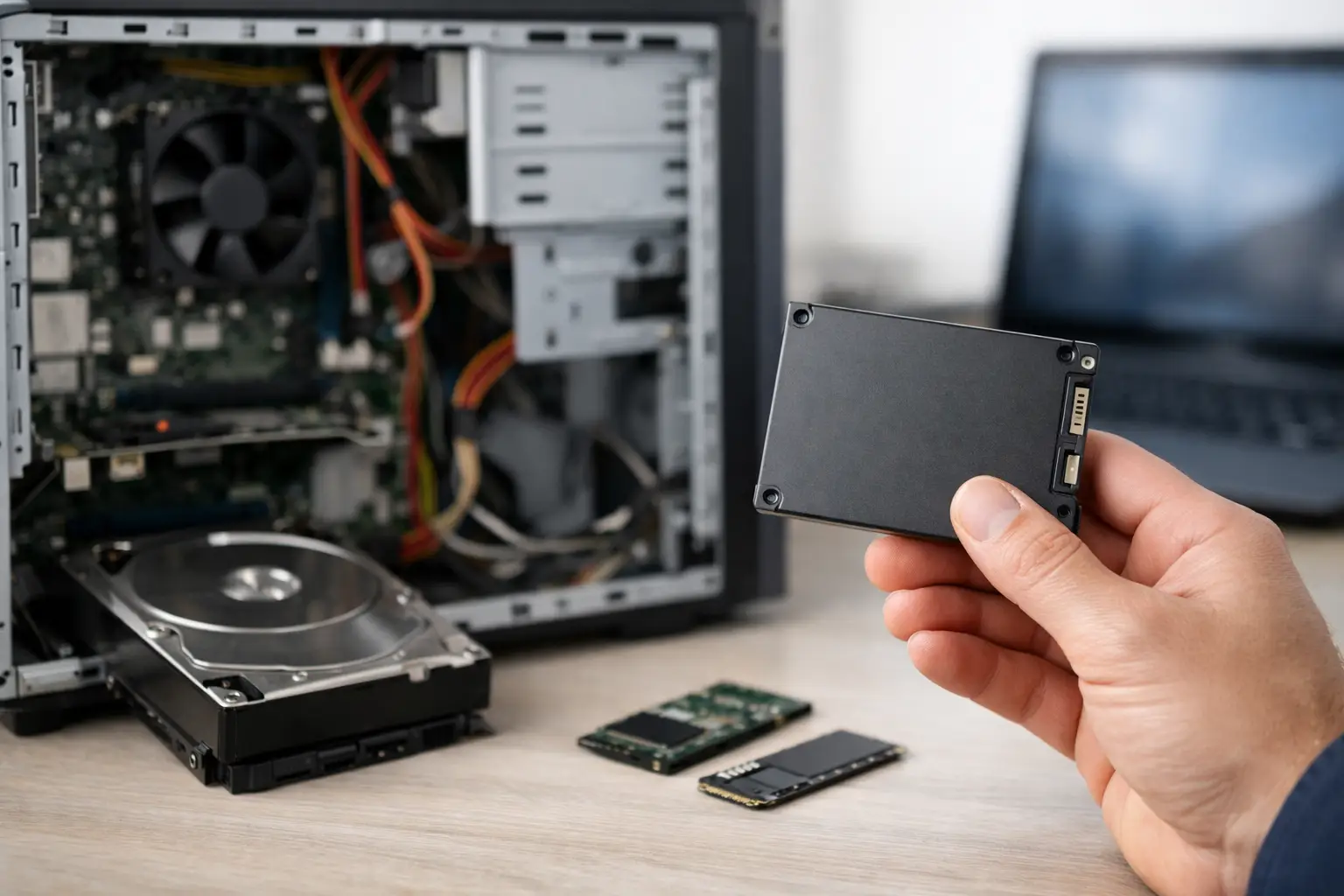

A computer that takes five minutes to reach the desktop, hesitates when opening email, or freezes while saving a document can make every task feel harder than it should. An SSD upgrade for old computer is often the fastest, most cost-effective way to change that experience without replacing a machine that is otherwise doing its job.
For many Southern California homeowners and small businesses, the hard drive is the real bottleneck. Replacing it with a solid-state drive can make an older PC feel dramatically more responsive. But it is not a cure for every aging computer. The right decision depends on the computer’s condition, compatibility, memory, operating system, and how you use it.
When an SSD Upgrade for an Old Computer Makes Sense
Traditional hard drives use spinning disks and moving read/write heads. That mechanical design is much slower than an SSD, which stores data on flash memory and has no moving parts. The difference is especially noticeable during everyday tasks: starting Windows, opening programs, searching for files, and switching between browser tabs.
An older computer is a strong SSD candidate when it still turns on reliably, its screen and keyboard are in good shape, and it can run the software you need. A five- to ten-year-old desktop or laptop with a healthy processor can often get several more useful years from a drive upgrade.
The biggest improvements tend to be felt by people who use office applications, web browsers, email, accounting software, school portals, and photo libraries. Instead of watching a loading circle for long stretches, the computer usually responds promptly to routine requests. That time adds up quickly in a home office or a small business where several people rely on a single workstation.
What an SSD Will Fix – and What It Will Not
An SSD can reduce delays caused by a slow hard drive. It can also help if the existing drive is beginning to fail, although a failing drive should be handled carefully to protect important files before an upgrade begins.
It will not fix every problem. If a computer has too little RAM, is overloaded with unwanted startup programs, has malware, overheats, or uses an outdated operating system that no longer receives security updates, the drive is only part of the story. A machine with 4GB of memory may still struggle with many browser tabs and video calls, even after a new SSD is installed.
Processor limits matter as well. A very old entry-level processor may remain slow with demanding work such as 4K video editing, modern gaming, large design projects, or running multiple virtual machines. In those cases, putting money toward a replacement computer may be the more practical choice.
That is why an honest assessment comes before the upgrade. The goal is not simply to install a new part. It is to determine whether the computer can deliver dependable performance for the work you need it to do.
Check Compatibility Before Buying a Drive
Most older laptops and desktops use a 2.5-inch SATA drive, and those systems can usually accept a 2.5-inch SATA SSD. This is the common, straightforward replacement for a conventional laptop hard drive. Many older desktop towers can use the same type of SSD, though they may need a simple mounting bracket to secure the smaller drive inside the case.
Newer systems may use an M.2 SSD, a small circuit-board-style drive that fits directly onto the motherboard. M.2 drives are not automatically compatible with every computer. Some use SATA-based M.2 drives, while others support faster NVMe drives. The connector may look similar even when the technologies differ.
Before ordering anything, verify the computer model, its available drive connection, and the physical space inside the machine. Also check whether the computer’s firmware supports the chosen drive type. Guessing can lead to the wrong purchase, a drive that cannot be installed, or a system that does not recognize the new storage.
Choose Capacity Based on Real Use
The least expensive SSD is not always the best value. Capacity matters because Windows, applications, updates, and personal files all need room to operate. A drive that is nearly full can slow down and becomes difficult to maintain.
For a basic computer used for browsing, email, documents, and a modest photo collection, 500GB is often a comfortable starting point. A 1TB SSD makes more sense for households with many photos and videos, professionals who keep active work files locally, or anyone replacing a larger hard drive. Small businesses should also consider future file growth rather than selecting a drive that only barely fits today’s data.
Brand, warranty, and drive quality matter too. A reputable SSD is a better choice than an unknown bargain drive with limited support. The cost difference is usually small compared with the disruption caused by repeating the installation after an early failure.
Cloning the Old Drive vs. Starting Fresh
There are two common ways to move to a new SSD. The first is cloning, which copies the existing operating system, programs, settings, and files to the new drive. When the old system is healthy and reasonably organized, cloning can be convenient because the computer comes back looking familiar.
The trade-off is that cloning can transfer problems along with the good data. Unwanted software, years of clutter, damaged system files, and certain malware infections may all make the trip to the SSD. A cloned drive can be fast, yet the computer may still behave poorly for unrelated reasons.
The second option is a clean Windows installation. This takes more setup time because programs need to be reinstalled and files restored from backup. However, it can give an older computer a genuinely fresh start. A clean installation is often the better path when the machine has been unstable, infected, or heavily loaded with software nobody uses anymore.
Protect Your Files Before Any Upgrade
Never assume a drive migration will go perfectly. Important documents, family photos, tax records, business files, and saved passwords should be backed up before work begins. A backup should be checked, not merely started. Make sure the files can actually be opened from the backup location.
If the old hard drive is clicking, disappearing from the computer, reporting errors, or taking an unusually long time to access files, avoid repeated restart attempts. Those symptoms can point to drive failure. Continuing to use it may reduce the chances of a successful recovery.
For a drive that is already failing, the priority changes from upgrading performance to protecting data. The IT Professionals can evaluate the situation and, when needed, coordinate more advanced recovery options under a no-recovery/no-charge approach.
Do Not Ignore the Rest of the Computer
The best SSD upgrades are paired with basic system cleanup. Removing unnecessary startup items, installing current security updates, checking for malware, and confirming that Windows is properly activated all help the computer stay responsive after the installation.
Adding RAM may also be worthwhile when the computer has limited memory and supports an affordable upgrade. For example, moving from 4GB to 8GB can make a noticeable difference for web browsing and multitasking. It depends on the model and its memory limits, so this should be confirmed before purchasing parts.
A laptop battery, cooling fan, charger, or display problem may affect the value of the upgrade as well. If several expensive repairs are needed at once, a replacement system can be the more sensible investment. Clear advice should account for the full condition of the machine, not just the storage drive.
A Faster Computer Should Also Be a Reliable One
An SSD is one of the rare upgrades that can make an old computer feel immediately better the same day it is installed. Still, the best result comes from matching the drive, installation method, backup plan, and system cleanup to the computer in front of you.
If your PC has become frustratingly slow, start by identifying why. A properly planned upgrade can save money, preserve familiar software and files, and give you a computer you can depend on again.