
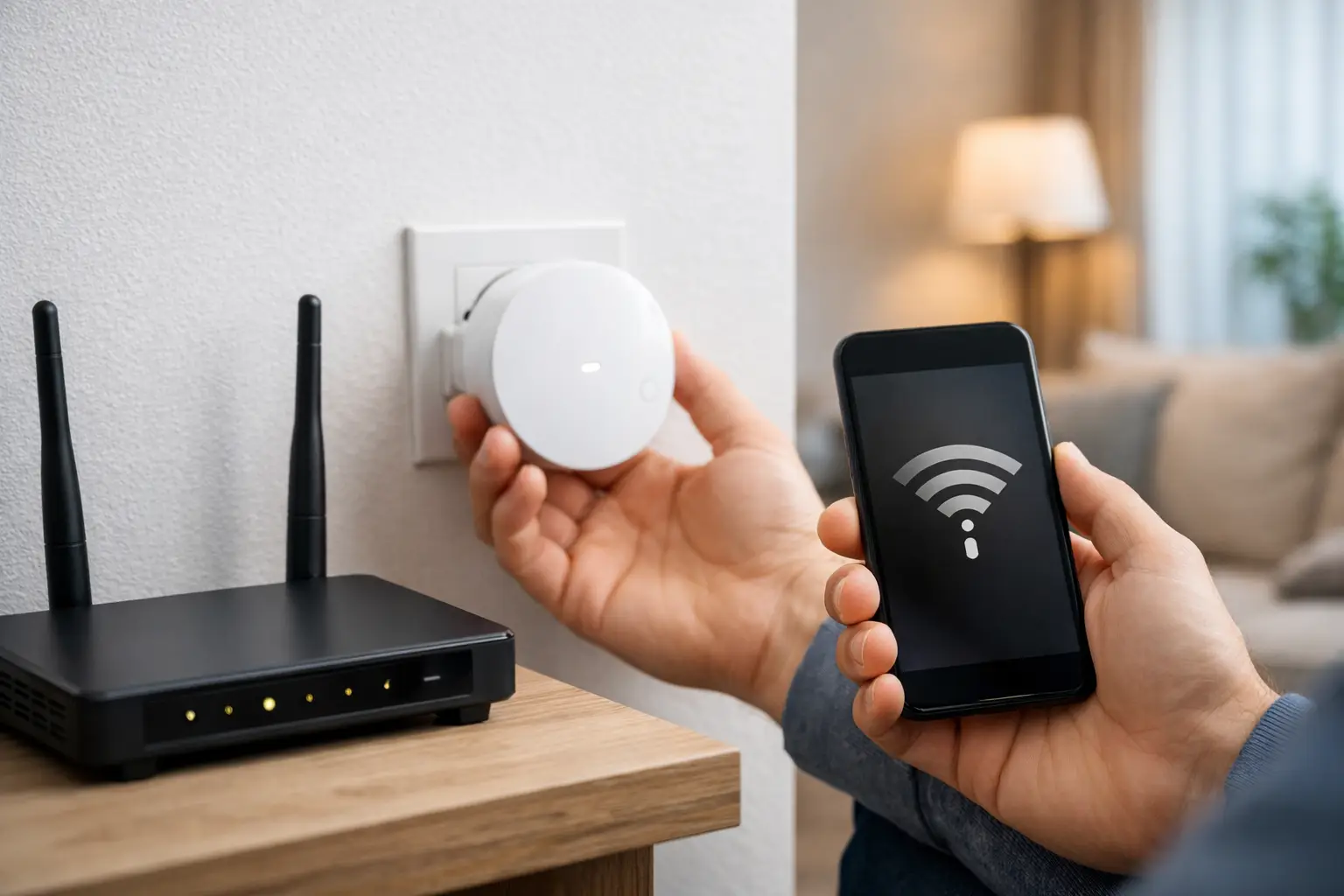

A video call drops when you walk into the bedroom. The smart TV buffers in the den. Your laptop works at the kitchen table but not in the home office. These are classic signs of weak coverage, and the good news is that you can often fix WiFi dead zones without replacing every device in the house.
The right solution depends on why the signal is failing. A router in the wrong place needs a different fix than a large home with concrete walls, a detached office, or a crowded network full of cameras, TVs, phones, and smart devices. Start by identifying the cause before spending money on new equipment.
Why WiFi Dead Zones Happen
WiFi is radio signal, not magic. It gets weaker as it travels through distance and physical barriers. Drywall has a modest effect, but brick, concrete, plaster, metal, stone fireplaces, mirrors, water pipes, and large appliances can reduce coverage dramatically. Southern California homes also vary widely in construction, from open single-story layouts to multi-level homes with thick walls and additions.
Router placement causes many problems. If the router is hidden in a cabinet, tucked behind a TV, placed on the floor, or installed at one end of the home, it starts at a disadvantage. The equipment may be working perfectly, but the signal simply cannot reach where you need it.
Interference is another common issue. Nearby WiFi networks, Bluetooth devices, baby monitors, cordless phones, microwaves, and some smart-home equipment can compete for wireless space. In a condo, apartment, or busy office building, dozens of nearby networks may be using the same channels.
Finally, the problem may not be coverage at all. An older router, outdated firmware, poor internet service, a failing cable, or a device with an aging wireless adapter can look like a dead zone. That is why a quick diagnosis matters.
First, Confirm It Is a Coverage Problem
Walk through your home or office with a phone, tablet, or laptop and test in the places where service feels unreliable. Notice whether the connection weakens gradually as you move away from the router or whether it fails only in one particular room.
If every device is slow everywhere, your internet connection or router may be the issue. If only one device has trouble, test a second device in the same location. A laptop that struggles while a newer phone works well may need an update, a driver repair, or a wireless adapter upgrade.
Also pay attention to timing. WiFi that works fine in the morning but becomes unstable at night may be dealing with neighborhood interference or heavy usage from streaming, gaming, cloud backups, and security cameras. A dead zone that appeared suddenly can point to a moved router, new furniture, a recent construction change, or failing equipment.
Start With Router Placement
Before buying a range extender or mesh system, give the existing router the best chance to work. Place it as close to the center of the coverage area as practical, ideally in an open location and elevated on a shelf or desk. Keep it away from enclosed cabinets, large metal objects, fish tanks, and dense electronics.
The router should not be placed directly behind a television or inside a media cabinet. Those areas are packed with cables, metal components, and devices that can interfere with the signal. If your modem connection enters the home in an inconvenient room, it may be worth moving the router using proper Ethernet cabling rather than accepting poor coverage throughout the house.
Adjust the external antennas if your router has them. A simple starting point is one antenna vertical and another horizontal, which can help devices held in different orientations. Do not expect antenna adjustments alone to solve a large coverage gap, but they can improve a borderline area.
Use the Right WiFi Band
Most current routers offer 2.4 GHz and 5 GHz WiFi. Some newer systems also use 6 GHz. Each has a different job.
The 2.4 GHz band usually travels farther and handles walls better, but it is slower and more crowded. The 5 GHz band can provide faster performance with less interference, but its range is shorter. The 6 GHz band can be excellent for compatible newer devices at close range, though it generally does not travel as well through walls.
A device in a distant bedroom may perform better on 2.4 GHz, while a streaming device in the same room as the router may benefit from 5 GHz. Many modern routers manage this automatically with one network name. That can be convenient, but automatic band selection is not always perfect. When a device stubbornly connects to a weak band, a technician can tune the network settings and confirm whether separate network names would be more reliable.
When to Use a WiFi Extender
A WiFi extender can be an affordable solution for a single weak room. It receives the existing signal and rebroadcasts it farther into the home. The catch is that an extender cannot create a strong connection from a weak one.
Install it halfway between the router and the dead zone, where it still receives solid signal. Placing it inside the dead zone is a common mistake. If it can barely hear the router, it will only repeat a poor connection.
Extenders work best for light tasks such as web browsing, email, and basic smart-home devices. They can be less satisfying for 4K streaming, video calls, gaming, or a home office that transfers large files. Some models also create a separate network name, which can be inconvenient as you move around the home.
Fix WiFi Dead Zones With a Mesh System
For larger homes, multi-story properties, and homes with several weak areas, a mesh WiFi system is usually a better long-term answer. Instead of one router doing all the work, a mesh system uses multiple access points that cooperate as one network. Your phone or laptop can move from room to room without you manually changing networks.
Placement still matters. Put the main mesh unit near the modem in an open area, then place additional units where they can maintain a strong connection to the main unit or another node. Do not place every unit at the far edge of coverage. Each node needs a good path back to the network.
Mesh systems have trade-offs. Wireless mesh nodes are convenient, but the connection between nodes uses some wireless capacity. In a very large home or one built with dense materials, wiring the nodes with Ethernet can make a major difference. This is called a wired backhaul, and it gives each access point a direct, stable connection instead of relying on a wireless hop.
A properly selected and installed mesh system can improve coverage, but it is not automatically the best choice for every property. A small apartment may only need better router placement. A detached guest house or backyard office may need a wired access point, outdoor-rated equipment, or a point-to-point wireless connection instead.
Consider Wired Access Points for High-Demand Areas
If you need dependable service in a home office, conference room, garage conversion, or entertainment area, wired networking is often the strongest option. An Ethernet cable from the router to a dedicated access point provides fast, consistent WiFi exactly where it is needed.
This approach is especially useful when walls are thick or when video meetings and business applications cannot tolerate dropped connections. It also helps keep stationary devices off WiFi. A smart TV, desktop computer, game console, or network storage device connected by Ethernet frees wireless capacity for phones, tablets, and mobile devices.
Running cable may involve planning, wall access, attic work, or careful routing around the property. It costs more than plugging in an extender, but it is often the better investment when reliability matters every day.
Check the Router and Network Settings
An old router can become the bottleneck even if its signal appears to reach every room. If it is several years old, struggles when multiple people are online, or cannot support current WiFi standards, replacement may be appropriate. Your internet plan may also have changed since the router was installed, leaving you with equipment that cannot deliver the speeds you are paying for.
Keep router firmware current, use a strong network password, and remove unknown devices from the network. Too many connected devices, especially cameras and smart devices, can strain entry-level equipment. A professional setup can separate guest devices or smart-home equipment when needed, improving security and reducing unnecessary congestion.
Avoid buying the most expensive router based on the box alone. The right equipment depends on your square footage, layout, wall materials, internet speed, device count, and the areas where performance matters most. A strong network is designed around the property, not just the advertised range.
Get Help When the Problem Is More Than One Room
If WiFi keeps dropping, a mesh system did not solve the issue, or your home office cannot stay connected during important calls, it is time for hands-on troubleshooting. The IT Professionals can assess the whole setup, from modem and router placement to cabling, access points, device settings, and interference. The goal is not to sell more equipment than you need. It is to give you dependable coverage where you actually use it.
A WiFi dead zone should not dictate where you work, stream, or take a call. Once the underlying problem is identified, the right placement, equipment, or wired connection can make the frustrating parts of your home network fade into the background.