
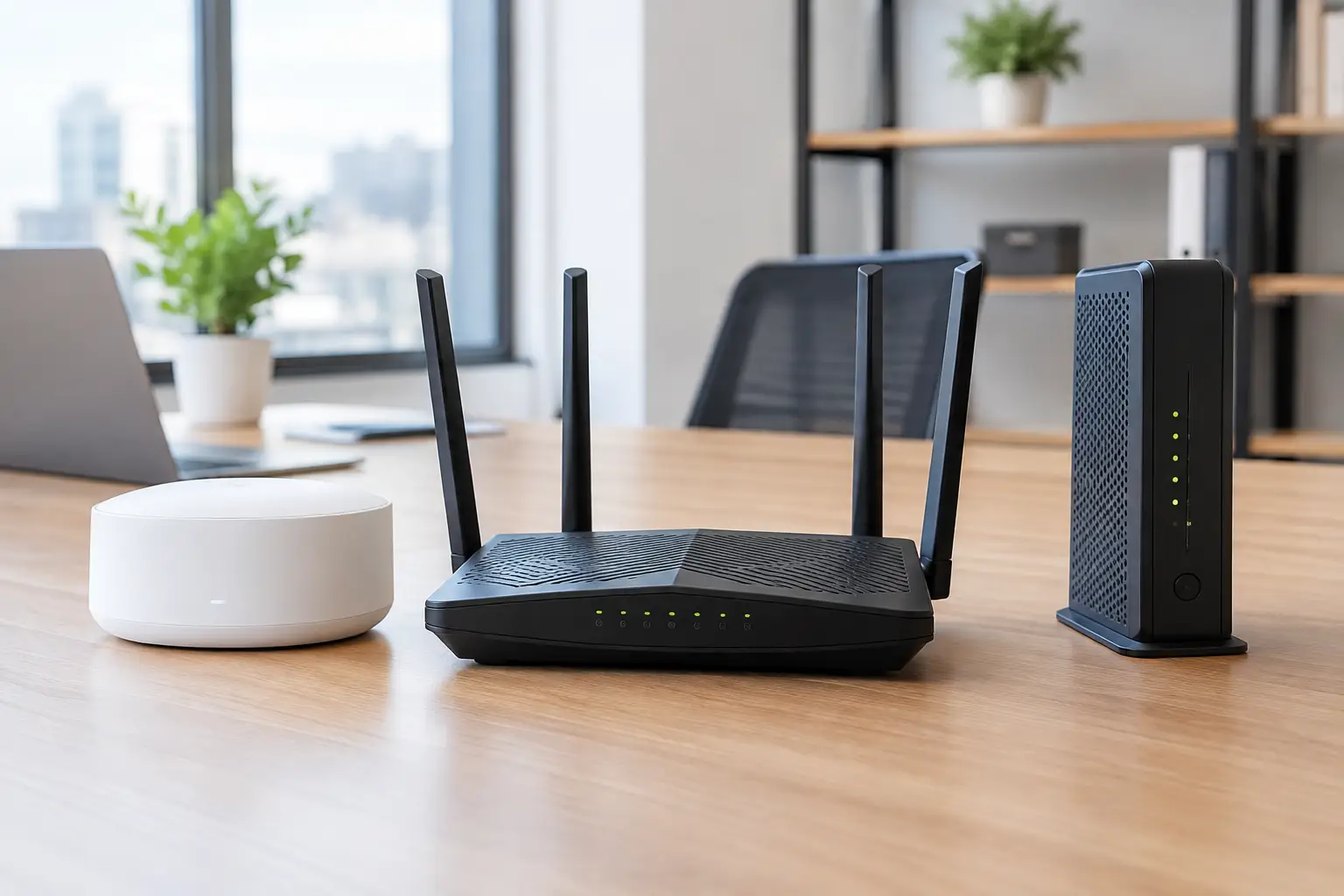

A dropped video call with a client, a point-of-sale terminal that will not connect, or cloud files that take forever to open can stop a small office in its tracks. When people search for the “best routers small offices” need, they are usually not looking for the fanciest box. They need reliable internet, sensible security, enough wired connections, and a setup that will not require a reset every few days.
The right choice depends on your office layout, staff count, internet service, and the number of connected devices. A five-person accounting office has different needs than a 20-person creative studio, medical practice, or warehouse. The goal is to buy equipment that solves the actual problem without paying for features you will never use.
What Makes the Best Routers for Small Offices Different?
A home router can work for a very small office, but it often becomes the weak point as more people, printers, phones, cameras, and cloud applications are added. Consumer models tend to combine routing, Wi-Fi, and a few Ethernet ports in one simple device. That is convenient, but it limits coverage and makes troubleshooting harder when the office grows.
A small-office router should do more than pass internet traffic. It should provide a strong firewall, allow secure remote access when needed, separate business devices from guest Wi-Fi, and handle multiple users without slowing down during busy periods. It should also receive regular security updates from a manufacturer with an established support record.
Do not confuse a router with Wi-Fi coverage. The router manages the connection between your office and the internet. Wireless access points provide the Wi-Fi signal around the building. In a one-room office, an all-in-one wireless router may be enough. In a suite with walls, conference rooms, or a warehouse area, a separate router and properly placed access points are usually the better answer.
Start With Your Internet Speed and Office Layout
Before comparing models, check the upload and download speed you actually receive, not just the speed advertised by your provider. Upload speed matters heavily for video meetings, cloud backup, sending large files, remote desktop sessions, and security cameras that record to the cloud.
Also look at the physical space. Concrete walls, metal shelving, elevators, electrical equipment, and neighboring wireless networks can all interfere with Wi-Fi. Buying a more expensive single router does not always fix poor coverage at the far end of an office. Two wired access points placed correctly often outperform one powerful-looking device on a shelf.
Four Router Choices That Fit Different Offices
There is no single winner for every business, but these approaches cover most small-office situations.
1. Ubiquiti UniFi for Offices That Need Room to Grow
A UniFi setup is a practical choice for many offices that need more control than a standard home router provides. A UniFi gateway handles routing and security, while separate UniFi access points provide Wi-Fi where employees actually work. This approach makes it easier to expand coverage later without replacing the entire network.
For example, a small office can start with a UniFi Cloud Gateway and one or two access points. If the company adds desks, cameras, or a second suite, additional access points and switches can be added within the same management system. Guest access, device monitoring, network separation, and remote administration are useful features when they are configured correctly.
The trade-off is setup. UniFi is not difficult for an experienced technician, but it is more involved than plugging in a consumer router. Poor placement, weak passwords, unplanned firmware updates, and incorrect network settings can still create problems. It is a good fit when the office wants a professional foundation rather than the least expensive option.
2. TP-Link Omada for Value-Conscious Business Networking
TP-Link Omada offers a similar idea: a dedicated router, managed switches, and separate access points that work together. It can be a strong value for offices that need dependable Wi-Fi, multiple access points, and basic business controls without spending at the high end of the market.
An Omada router paired with Wi-Fi 6 access points is often appropriate for offices with roughly five to 25 employees, depending on their workload and building layout. It supports guest networks and VLANs, which allow you to keep employee computers, guest devices, cameras, and smart equipment separated. That separation matters. A visitor on the guest network should not be able to see an office printer, shared files, or a security camera.
The important detail is choosing compatible equipment and configuring it as one system. Mixing random routers, extenders, and access points may work temporarily, but it can lead to roaming issues and confusing support calls later.
3. Firewalla for Strong Visibility and Straightforward Security
Firewalla is worth considering for small offices that want clear visibility into what is happening on the network. Its firewall-focused appliances can identify unusual activity, block unwanted traffic, create network rules, and support secure remote connections. For an office handling financial data, client files, or several remote workers, that added visibility can be valuable.
A Firewalla appliance is not normally the complete Wi-Fi solution by itself. You will still need quality access points or a wireless system behind it. Think of Firewalla as the security and traffic-control center, not necessarily the device that supplies wireless coverage throughout the office.
This route is especially useful when security is the priority, but it still requires thoughtful installation. A firewall cannot compensate for outdated computers, reused passwords, or staff who click every unexpected attachment. Network protection works best alongside current software, endpoint security, and regular backups.
4. ASUS ExpertWiFi or a Quality Mesh System for Very Small Offices
For a small office with a handful of users and a simple layout, an ASUS ExpertWiFi system or business-capable mesh Wi-Fi may be the right level of complexity. These options are easier to deploy than a full router, switch, and access-point design, and some offer guest networks, basic VPN capability, and centralized management.
This can make sense for a two- to six-person professional office, a small retail counter, or a temporary workspace. It is also useful where running Ethernet cable is difficult, although wired backhaul between mesh units is always preferable when available.
The limitation is scale. Mesh systems are not automatically bad, but wireless mesh links can lose speed and create inconsistent performance in larger spaces. If your office depends on large file transfers, many video calls, cloud applications, or wired equipment, a dedicated router with wired access points is the safer long-term choice.
Features Worth Paying For
Do not buy based only on a large Wi-Fi number printed on the box. Wi-Fi 6 is still a sensible standard for many small offices, and Wi-Fi 6E or Wi-Fi 7 may be worthwhile when you are buying for several years of growth or supporting newer devices. More advanced Wi-Fi does not help much if your internet plan is slow or your access points are placed poorly.
Look for a router with automatic security updates, a built-in firewall, guest-network capability, VPN support if remote access is needed, and enough processing power for your connection. If you pay for internet faster than 1 Gbps, verify that the router has multi-gig ports. Otherwise, your new internet service may be limited by an older 1 Gbps connection inside the office.
Wired ports matter too. Desktops, printers, network storage, phones, cameras, and access points are generally more dependable when connected by Ethernet. Most growing offices need a separate network switch rather than trying to run everything from the few ports on a router.
Avoid relying on Wi-Fi extenders as a permanent fix. They can help in a pinch, but they often cut performance and create a second network name that employees must manage. A wired access point is usually a cleaner fix.
Plan the Installation, Not Just the Purchase
Even the best equipment can perform badly when it is installed in a cabinet, behind a television, or next to electrical equipment. Put the router and switch in a ventilated, secure location. Place access points out in the open, preferably near the center of the area they serve. Use different network names for staff and guests, change default administrator credentials, and document the settings somewhere secure.
It is also wise to use a battery backup for the modem, router, switch, and one access point. It will not keep the internet running through every outage, but it can protect equipment from sudden power loss and may keep service available during short interruptions if your provider is still online.
For Southern California businesses, The IT Professionals can help assess the office, identify coverage problems, install the right equipment, and provide direct support when the network is not behaving as it should. That is often more cost-effective than repeatedly replacing hardware without finding the real cause.
The best router is the one that lets your staff work without thinking about the network at all. Choose for your current needs, leave room for reasonable growth, and make sure someone can step in quickly when a connection problem threatens the workday.