
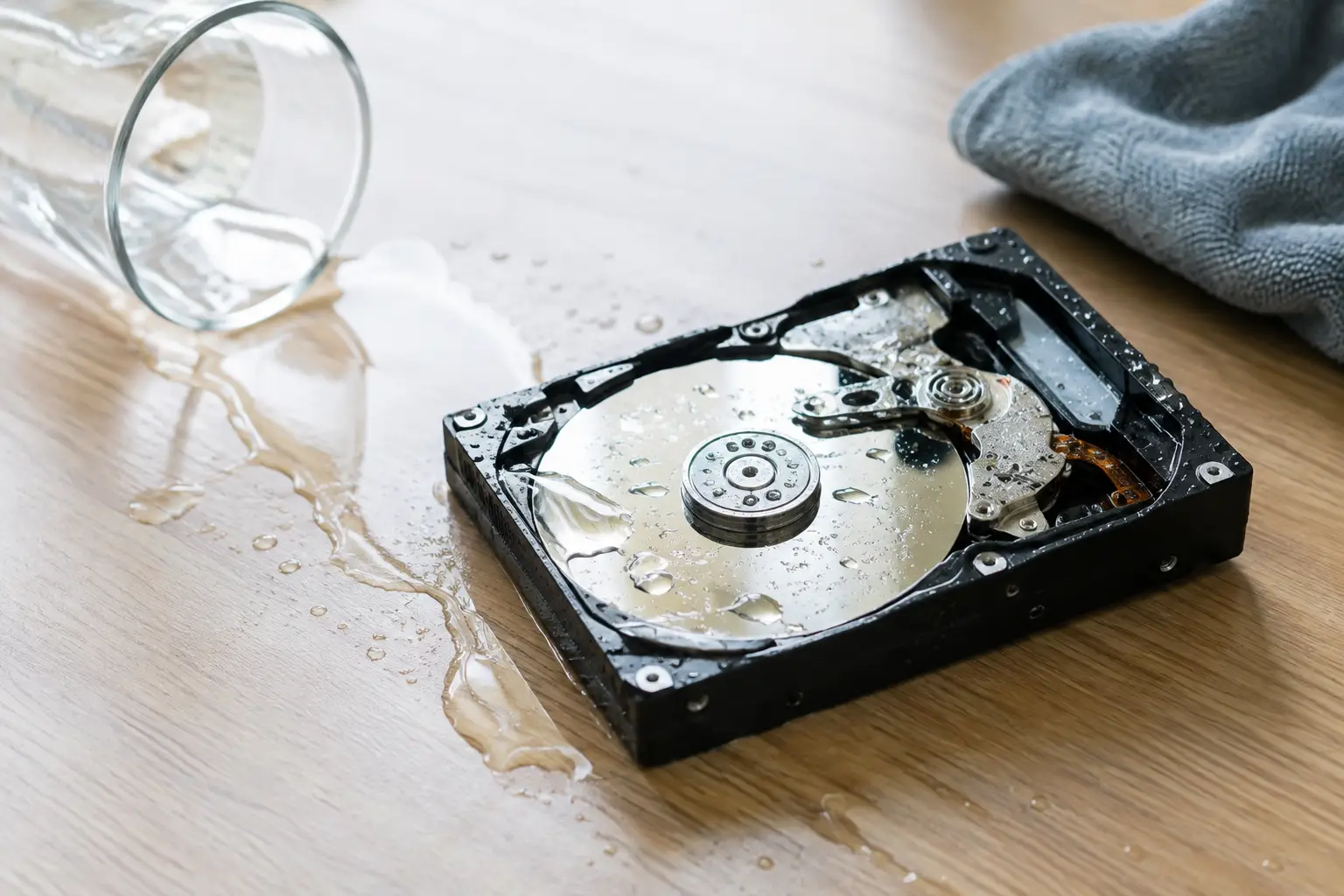

A glass of water tipped near a laptop can turn an ordinary afternoon into a serious data emergency. Can water damage hard drives? Yes – and the damage may get worse each time the computer is powered on. The right response in the first few minutes can make a meaningful difference to the chances of recovering family photos, business documents, accounting files, and other irreplaceable data.
Water damage does not always mean the files are gone forever. But it does mean you should stop guessing, stop restarting the computer, and avoid quick fixes that can turn a repairable problem into permanent loss.
Can Water Damage Hard Drives?
Traditional hard disk drives are especially vulnerable because they contain moving mechanical parts and delicate electronic components. A hard drive has sealed internal platters where data is stored, along with a circuit board, motor, connectors, and read/write heads. Water can damage the exterior electronics, short out the circuit board, corrode connectors, or interfere with the drive’s mechanical operation.
If moisture gets inside the drive, the situation becomes more complicated. Even when a drive seems dry on the outside, moisture and contaminants can remain around connectors or under components. When electricity is applied, a short circuit can occur. Over time, corrosion can continue damaging traces and contacts on the circuit board.
The type of water matters, too. Clean drinking water is less destructive than pool water, saltwater, coffee, soda, or a floodwater exposure. Salt, minerals, sugar, and debris leave conductive residue behind. That residue can corrode components quickly and makes recovery more difficult.
A solid-state drive, or SSD, has no spinning platters or moving heads. That eliminates some mechanical risks, but an SSD is not waterproof. Its chips, controller, and power circuitry can still fail after exposure to liquid. In some cases, SSD recovery is more difficult because the data is distributed across memory chips and managed by a specialized controller.
What to Do Immediately After a Spill
Your priority is to remove power safely. Do not test the computer to see whether it still works. A device that powers on after a spill can still have moisture inside it, and each attempted startup creates another opportunity for electrical damage.
Take these steps as soon as possible:
- Shut the computer down immediately if it is on. Hold the power button only if a normal shutdown is not possible.
- Unplug the charger, power cord, external drives, and connected accessories.
- Remove the battery if the device has a removable one. Do not force anything open.
- Move the device away from the liquid and gently blot visible water from the exterior.
- Keep the hard drive or computer powered off until it has been assessed.
If an external hard drive was exposed, disconnect it from power and the computer right away. Do not plug it into another computer to check whether the files are accessible. A second computer cannot dry the drive or fix a shorted circuit board.
For a laptop, avoid shaking it aggressively. It may spread liquid farther inside the machine. If you can do so without disassembling the computer, place it in a position that allows visible liquid to drain away from the keyboard and ports. Then get professional help promptly.
What Not to Do With a Wet Hard Drive
Well-meaning advice can cause more harm than the original spill. Do not put a hard drive in rice. Rice does not remove residue, does not dry moisture trapped under components, and can introduce dust or particles into ports and connectors.
Avoid hair dryers, ovens, radiators, and direct high heat. Excessive heat can warp plastic parts, damage electronics, and create new problems. Do not open the metal enclosure of a traditional hard drive yourself. Its internal components require an extremely clean environment. Dust, fingerprints, or a misaligned part can damage the platters where your files are stored.
It is also risky to swap the circuit board from an identical-looking drive. Modern drives often store unique calibration data on the original board. A replacement board may not communicate correctly with the drive and can complicate a later recovery attempt.
The temptation to wait is understandable, especially if the computer seems to be functioning. Unfortunately, water damage is often time-sensitive. Corrosion can continue after the spill, particularly when liquid contains salts or other contaminants. Fast action is usually less expensive and more successful than waiting for the drive to fail completely.
Signs Your Drive May Have Water Damage
Sometimes the damage is obvious: the computer will not start, an external drive has no power light, or the device was directly submerged. Other times, symptoms appear hours or days later.
You may notice that the drive disconnects randomly, files will not open, the computer freezes during startup, or the drive makes clicking, beeping, or repeated spinning sounds. A burning smell, unusual heat, or a power light that flashes without the drive appearing on the computer are also warning signs.
If the drive is still accessible, do not continue normal work as if nothing happened. Copying files, running updates, or repeatedly rebooting can put additional strain on compromised hardware. If the data is valuable, power down and have the device evaluated before attempting a large backup or repair.
When Data Recovery Is Possible
Whether files can be recovered depends on where the water went, how long the device was wet, whether it was powered on, and the condition of the storage hardware. A drive with a damaged external enclosure or circuit board may have a good chance of recovery if the platters or memory chips are intact. A drive that was submerged, powered on repeatedly, or contaminated with saltwater faces a more difficult recovery process.
Professional recovery starts with diagnosing the actual failure. The goal is not simply to make the drive run again. It is to protect the data and create a safe path to copy it to a healthy device. This may involve carefully cleaning corrosion, repairing or replacing damaged electronics, imaging a failing drive, or using advanced laboratory tools for mechanical and internal damage.
A reputable recovery provider should explain what they find in plain language and be honest about the likely outcome. For critical data, choose a service that handles the device carefully and can coordinate advanced laboratory recovery when standard methods are not enough. The IT Professionals can help assess the situation and pursue recovery options under a no-recovery/no-charge approach when appropriate.
How to Protect Your Data Before the Next Spill
The best recovery plan begins before an accident happens. Keep current copies of important files in at least two separate places, such as an external backup drive stored safely away from the computer and a secure cloud backup service. A backup connected to the same computer all the time may be affected by the same spill, power surge, theft, or malware infection.
For small businesses, make sure backups include the files people actually need to run the business: financial records, customer information, shared documents, email archives, and specialized software data. Test those backups occasionally. A backup that cannot be restored is not much comfort during an emergency.
It also helps to keep drinks away from computers, use a raised stand for external drives, and avoid placing electronics directly on the floor where a leak or flood can reach them. These small habits will not prevent every accident, but they reduce the odds that one spill becomes a costly interruption.
If water has reached your computer or drive, treat the data as fragile from that moment forward. Leave it powered off, avoid home remedies, and get a clear assessment before the next click, restart, or attempted repair puts your files at greater risk.