
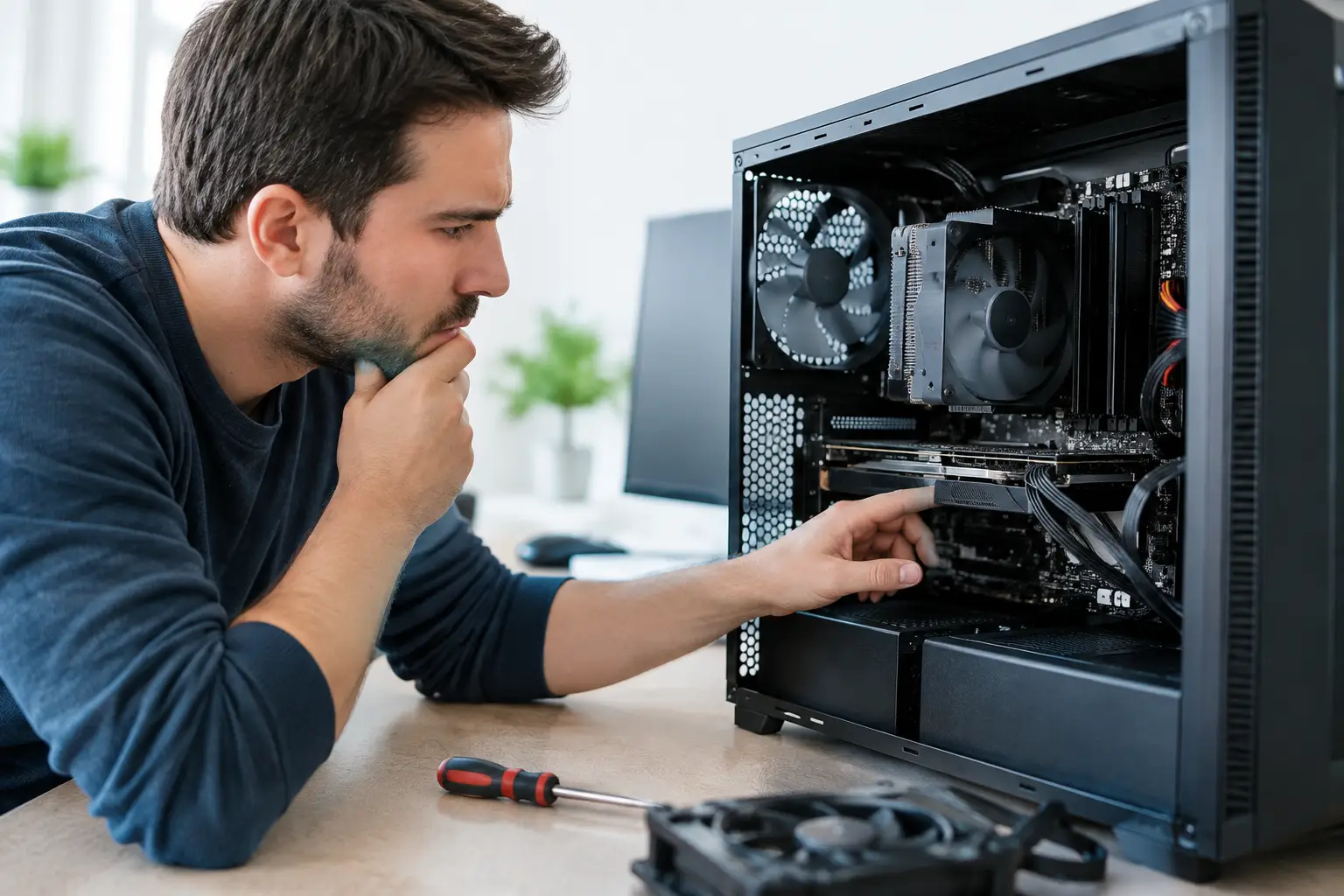

A computer that suddenly sounds like a small vacuum, slows down during simple tasks, or shuts off without warning is not just being annoying. It is trying to protect itself. A proper PC overheating diagnosis can prevent crashes, lost work, damaged components, and the kind of failure that always seems to happen when you need the computer most.
Heat is normal inside every desktop and laptop. Processors, graphics cards, storage drives, and power supplies all create it while they work. The problem begins when the cooling system cannot move that heat out quickly enough. The computer may reduce its speed to stay safe, display a blue screen, restart unexpectedly, or refuse to power back on until it cools down.
Signs Your PC Has a Heat Problem
The most obvious sign is a loud, constantly running fan. Fans will speed up during video editing, gaming, large file transfers, or other demanding work, but they should settle down when the task ends. If they stay loud while you are checking email or working in a browser, excess heat may be building up.
Slow performance can be another clue. Modern processors are designed to protect themselves by lowering their speed when temperatures rise too high. This is called thermal throttling. From your perspective, the computer may feel unusually sluggish, applications may freeze, or video calls may stutter even though the system used to handle those tasks easily.
Unexpected shutdowns deserve immediate attention. A shutdown can be caused by software, a failing power supply, or a battery issue, so it does not automatically mean overheating. But if it happens while gaming, rendering video, running business software, or using the computer in a warm room, temperature should be checked early in the troubleshooting process.
On a laptop, a very hot bottom panel, keyboard area, or charging area can also indicate trouble. Some warmth is expected. Painfully hot surfaces, hot plastic smells, or a fan that grinds, clicks, or never starts are not normal.
PC Overheating Diagnosis Starts With the Cause
The right fix depends on where the heat is coming from. Replacing parts before identifying the cause can waste money and leave the original problem unresolved.
Dust and blocked airflow
Dust is one of the most common reasons a once-reliable computer begins running hot. It collects in fan blades, heat sinks, vents, and filters. A thin layer may not look serious, but it can restrict airflow enough to trap heat around critical components.
Desktop computers are especially vulnerable when they sit on carpet, near pets, or close to an open window. Laptops can clog more quickly because their cooling vents and heat sinks are compact. Using a laptop on a blanket, couch cushion, or bed can block the intake vents completely.
A visual inspection often helps. With the computer powered down and unplugged, check exterior vents for dust buildup. Do not push a household vacuum nozzle directly into delicate internal components. Compressed air used carefully can help, but a thorough cleaning should be done with care to avoid damaging fans, cables, or connectors.
Failed or weak cooling hardware
A fan can spin but still fail to move enough air. It may be running slowly, wobbling, making noise, or stopping intermittently. In desktops, case fans, CPU fans, graphics card fans, and power supply fans each play different roles. One failed fan can affect the entire system.
Some higher-performance computers use liquid cooling. These systems can work very well, but a failed pump, blocked radiator, air bubble, or leak can create serious heat problems. If a liquid-cooled system suddenly reaches high temperatures, it should be inspected rather than repeatedly restarted.
Thermal paste is another possibility. This material sits between the processor and its heat sink to transfer heat efficiently. Over time, it can dry out or lose effectiveness. Reapplying it is a routine repair for an experienced technician, but it requires removing cooling hardware correctly and using the right amount of paste. Too much, too little, or poor heat-sink contact can make temperatures worse.
Demanding software or hidden activity
Not every overheating problem starts with hardware. A computer may be working much harder than it appears to be. A browser with many open tabs, cloud backups, antivirus scans, video rendering, games, or a background update can keep the processor busy for long periods.
Malware can also consume processor resources without your knowledge. If the computer becomes hot and slow while sitting idle, check for unfamiliar programs, unusual pop-ups, or unexplained network activity. Removing malware and reviewing startup programs may reduce the load, but hardware temperatures should still be checked if shutdowns have occurred.
Poor placement and room conditions
A powerful desktop packed into a closed cabinet has nowhere to send its heat. The same applies to a laptop placed against a wall with its vents blocked. Give a computer breathing room on all sides, especially behind the case where warm air often exits.
Southern California heat can add another layer to the problem. A computer that runs acceptably in a climate-controlled office may struggle in a hot garage, sunny room, or poorly ventilated workspace. Air conditioning is not a substitute for working fans and clean vents, but ambient temperature absolutely affects how hard a cooling system must work.
Safe Checks You Can Make Before Calling for Help
Start with the basics. Save your work, shut the computer down, and let it cool completely. Move it to a hard, flat surface with open space around the vents. If it is a desktop, make sure nothing is pressed against the rear or side ventilation openings.
When you restart it, listen carefully. Do the fans begin spinning? Does one make an unusual scraping sound? Does the computer become loud immediately after startup, or only when a specific program opens? These details make diagnosis faster.
You can also review the Task Manager on a Windows PC to see whether a program is using an unusually high percentage of the CPU, memory, or disk. This does not measure temperature by itself, but it can reveal whether the system is under a heavy workload. Avoid downloading random “PC cleaner” or temperature-fix utilities. Many are unnecessary, and some create more problems than they solve.
If the computer has already shut down from heat, do not keep forcing it back on to test it. Repeated overheating can put stress on the processor, graphics card, motherboard, storage drive, and power components. If important files are on the machine, protecting the data should be part of the repair plan from the beginning.
When Overheating Needs Professional Service
A professional inspection is the better choice when a computer shuts down repeatedly, emits a burning smell, has a swollen laptop battery, shows liquid-cooling concerns, or gets hot even after vents are cleaned. It is also wise to get help when the computer contains business records, family photos, financial files, or work that has not been backed up.
The IT Professionals can inspect the system, identify whether the problem is dust, airflow, a failing fan, thermal paste, software load, malware, or a component issue, and recommend only the repair that makes sense. Sometimes the answer is a cleaning and fan replacement. Other times, an aging machine may benefit more from an upgrade, a redesigned cooling setup, or a custom-built replacement that fits the work you actually do.
There is a trade-off between a quick temporary improvement and a lasting repair. A laptop cooling pad may help in the short term, for example, but it will not repair a blocked heat sink or failing internal fan. Closing background programs may reduce temperatures, but it will not solve dried thermal paste or a failing pump. Good service means finding the source, not just making the warning signs disappear.
Protect the Computer Before Heat Becomes Damage
Heat problems rarely improve on their own. A fan may get louder for weeks before it fails. Dust may build up gradually until a warm afternoon or demanding project pushes the system past its limit. Paying attention early can save a computer from avoidable damage and save you from a stressful interruption.
If your PC is running hot, slowing down, or shutting off, stop treating it like a minor inconvenience. Get the cause checked while the repair is still straightforward, your files are accessible, and your computer can get back to doing its job reliably.